 Jan 20, 2026

If you’re building an app that relies on Open Banking, your users need to connect their bank accounts. But not everyone completes that journey – and that drop-off hurts your conversion rate, your UX, and ultimately your business model.
That’s where A/B testing comes in. It allows you to split traffic and test different versions of your connection journey to select the one that works best, gradually increasing connection success over time.
At Powens, we enable you to do exactly that: to personalize consent Webviews and A/B test them to optimize consent rates. And in this article, we’ll walk you through the exact steps.
You can also watch this video:

Completing Open Banking authentication and setting up Webview
Integrating the Powens API requires the retrieval of API keys for authentication. These keys include a client ID and client secret per application. If you haven’t done it already, go and create a free account on the Powens Console and build your first Client App to retrieve API keys.
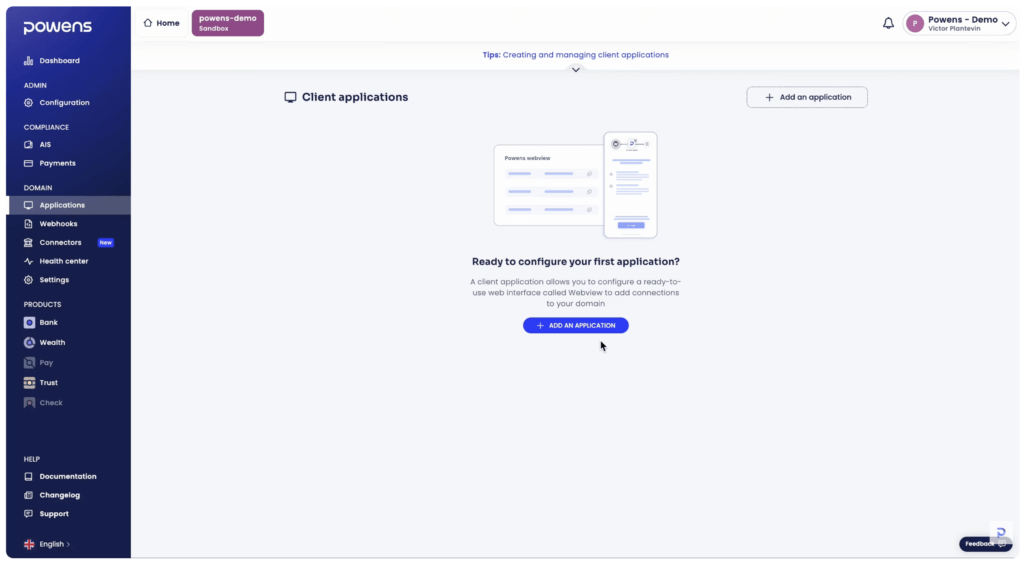
- You’ll first need to navigate to the Applications tab under the DOMAIN category on the Powens platform sidebar (pictured below). From here, you can click + ADD AN APPLICATION to create a new client app using Powens.
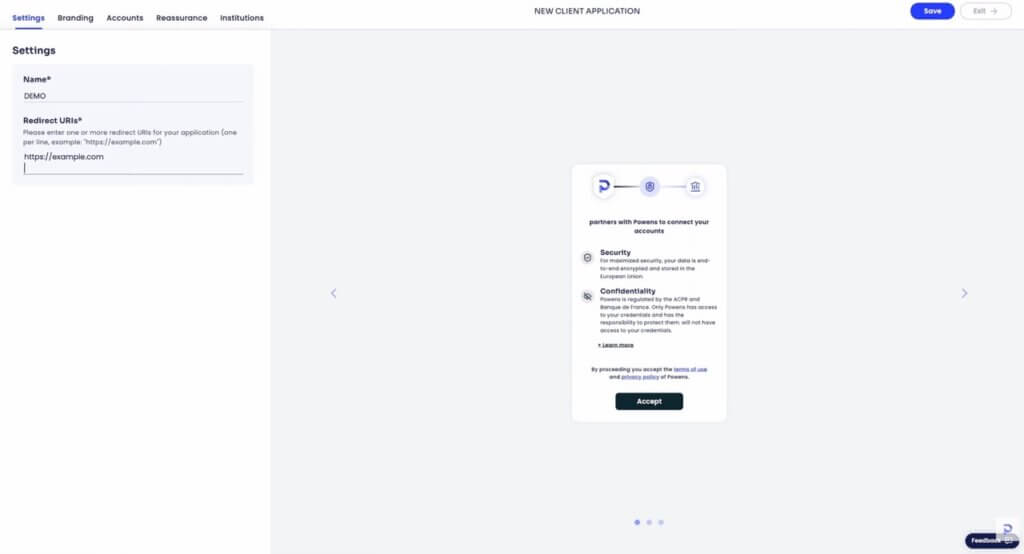
- After you add a new application, you’ll be directed to a screen where you need to enter a name and URL for your client app. Navigate to Settings on the left to enter your client app name and URL, then click Save in the upper right-hand corner to continue.
Customizing Webview for optimal Open Banking UX
Customization of the Webview widget maximizes the chances of your users successfully connecting their bank to your system. You can change multiple settings of the widget to show information like:
- The banks displayed to your users
- Messages shown to your users
- The ability (or inability) to connect to a bank through a QR code (optional setting)
- The overall appearance of the widget
Think about your user segment and what they would expect from such a flow. Are you building an app for people under 30? They’re used to sharing data online and don’t like too much text, so choose a minimalist approach. Or maybe you’re building a SaaS accounting software and intend to have CFOs and accountants connect business bank accounts. In that case, include all the information on how the data will be processed and used.
Let’s see what’s possible to edit.
Branding
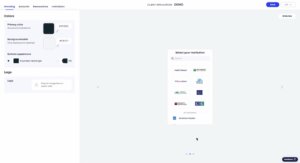
Choose exact shades for your primary and background colors that match your company branding. You can also change the appearance of buttons and add your logo.
Institutions
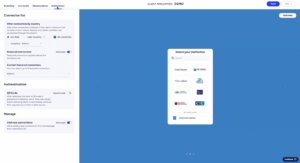
From the Institutions tab, you can filter connectors by country and add up to eight featured connectors. Additionally, this tab comes with toggle options for:
- Displaying featured connectors above the connector list
- Allowing QR code authentication
- Allows users to add new Open Banking connections from the Manage flow connections list
Reassurance clauses
The Reassurance tab enables you to activate featured clauses when the user opens the Connect Webview, with Confidentiality and Security set as the default featured clauses.
You can also reorder these elements (Security, Confidentiality, etc.) as well as toggle on the PSD2 SCA notice and a sidebar layout in Webview.
Conducting Open Banking API testing with the A/B method
The Open Banking customer experience requires some experimentation to get right, and customizing the Webview is a great place to start. A tailored widget vastly increases your chances of users connecting their banks successfully and feeling satisfied with the experience.
Depending on the use case, our data shows that optimizing your widget can boost your conversion rate by up to 10 points.
Let’s look at a real-world example, with the activation or deactivation of a QR code. The QR code allows you to switch the authentication from a web/desktop flow to a mobile flow. Switching the bank connection journey to mobile enables the user to authenticate via their mobile banking app. Usually, they would log in through a simple code or Face ID, making the experience smoother than entering bank credentials manually.
In our example, an accounting software had the QR code activated for all its users. We tried an experiment and deactivated it for a fraction of the user base. We quickly realized that, in fact, the conversion rate was higher without the QR code. Why? Because users of accounting software are businesses, and the person responsible for accounting may not necessarily have the mobile app installed on their phone.
So, how to perform those kinds of experiments?
After you create your first client app, you can continue creating more with different Webview settings.
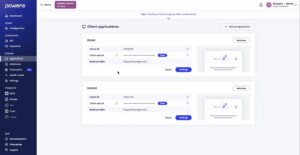
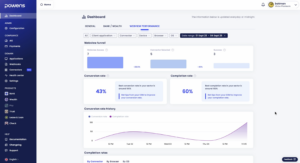
Along with the ability to view and manage your client apps, Powens also provides a dedicated dashboard in the Console for visualizing conversion rates over time. The dashboard can break down numbers according to bank, device, browser, and operating system.
Most importantly, it compares the numbers and performance of each of your client apps, meaning you can test out multiple versions at the same time (and here is your A/B testing). You can set up user traffic to be distributed evenly between the different versions of your client app, allowing you to compare conversion rates and identify the ideal combination of settings that achieves the highest conversion rate.
Take a look at this demo dashboard for a closer look at the types of data analytics you’ll have access to:
Start creating and comparing Webviews
The only way to find the magic client app configuration that converts is to start creating, customizing, and testing multiple Webviews. Powens’ dashboard gives you the freedom to easily switch between the two while also monitoring and comparing their respective performance.
You can take your time A/B testing to find the optimal combination, or you can use these features as a means to fast-track the success of the Open Banking connections of your client apps.
Either way, Powens’ dedicated support team is here to assist throughout the user journey.
We’ll help you determine the best customizations for your widget configuration, as well as provide critical guidance on how to best compare your Webviews via the dashboard.
By the end of your testing process, you’ll have a client app that converts seamlessly, as seen across products built by Powens customers such as Qonto, Pennylane, and Finary. They benefit from Powens’ strong consent performance out of the box and from the ability to optimize it further using our A/B testing capabilities.
Contact us today to get started.